mobile/dropped-frames-why-one-slow-function-freezes-a-phone-screen.md
Dropped frames: why one slow function freezes a phone screen
You tap a button and your phone screen freezes for a moment, even though the app did not crash. The reason is that one thread both listens to your taps and draws every frame, so a slow job leaves it no time to draw.
This article shows how a screen is a flipbook with a budget of about 16 milliseconds per frame, counts the dropped frames with a short Python function, and lets you compare three fixes: the main thread, small chunks and a background thread.
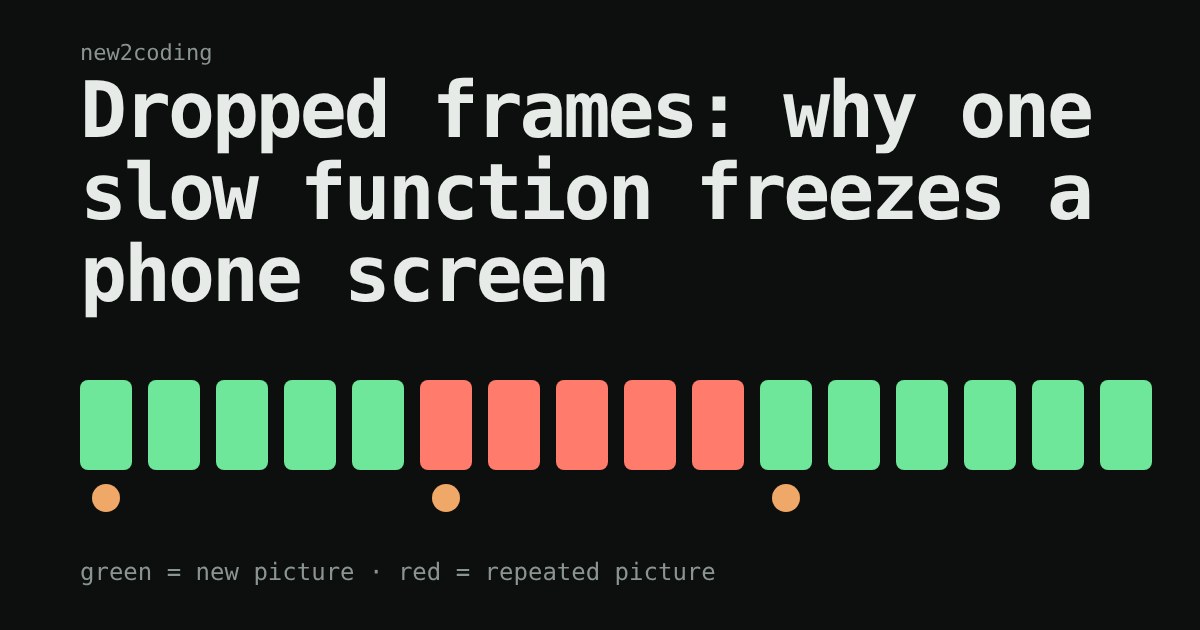
You scroll a list on your phone and it glides. Then you tap one button and for a moment everything stops, the list hangs, and a second later it jumps. The app did not crash. It was just busy. This article explains why one slow function can freeze a whole screen, and the three ways apps avoid it.
A screen is a flipbook
A phone screen shows a new picture many times a second. A common screen redraws 60 times per second (60 Hz), and many newer phones do 90 or 120. Each redraw is called a frame. At 60 Hz there are 1000 ÷ 60 ≈ 16.7 milliseconds between frames. At 120 Hz there are only 8.3 ms.
Before each refresh the app must have the next picture ready. If it is ready, the screen shows it. If it is not, the screen shows the previous picture again. That repeated picture is a dropped frame, and your eye reads it as a stutter.
One thread draws everything
A thread is one line of work a program is following, one instruction after another. Both Android and iOS give each app a special thread, usually called the main thread (Android also calls it the UI thread). It does two jobs: it reacts to your taps, and it prepares every frame. It can only do one thing at a time.
So if you put a slow job on the main thread, such as reading a large file, sorting ten thousand items, or decoding a big image, the thread is stuck on that job. It cannot prepare the next frame until the job ends. Every frame whose deadline passes in the meantime is dropped.
Count the dropped frames
Here is the idea as a short Python function. It assumes drawing a frame costs 2 ms, and asks how many screen refreshes pass before the next finished picture is ready.
import math

def dropped_frames(task_ms, hz=60, draw_ms=2):
    frame_ms = 1000 / hz
    ready_at = task_ms + draw_ms
    first_vsync_with_new_picture = math.ceil(ready_at / frame_ms)
    return first_vsync_with_new_picture - 1

for task in [5, 10, 14, 15, 17, 50, 100, 300]:
    print(f"{task:>4} ms task -> {dropped_frames(task):>2} dropped at 60 Hz, "
          f"{dropped_frames(task, hz=120):>2} dropped at 120 Hz")
Running it prints:
   5 ms task ->  0 dropped at 60 Hz,  0 dropped at 120 Hz
  10 ms task ->  0 dropped at 60 Hz,  1 dropped at 120 Hz
  14 ms task ->  0 dropped at 60 Hz,  1 dropped at 120 Hz
  15 ms task ->  1 dropped at 60 Hz,  2 dropped at 120 Hz
  17 ms task ->  1 dropped at 60 Hz,  2 dropped at 120 Hz
  50 ms task ->  3 dropped at 60 Hz,  6 dropped at 120 Hz
 100 ms task ->  6 dropped at 60 Hz, 12 dropped at 120 Hz
 300 ms task -> 18 dropped at 60 Hz, 36 dropped at 120 Hz
Notice two things. A 10 ms task is harmless at 60 Hz but already costs a frame at 120 Hz, because the budget shrank. And the damage grows with the task: 300 ms is not "a bit slow", it is more than a third of a second of a frozen screen. This is a simplified model (real systems queue frames and have extra overhead), but it shows the shape of the problem.
Try it: three ways to run the same job
Below, a ball slides along a track while a heavy job runs. Pick how the job runs, set how long it takes, and press Run. Each box is one screen refresh: green is a new picture, red is a repeated one. The ball only moves when a new picture appears.
The three fixes
1. Move the job to a background thread. A program can run more than one thread at once. Put the slow job on a second thread and the main thread stays free to draw. On Android this is usually done with Kotlin coroutines on a background dispatcher; on iOS, with Swift concurrency or a background queue. When the job finishes, it hands its result back to the main thread, because only the main thread is allowed to change what is on screen.
2. Cut the job into small chunks. If the work cannot leave the main thread, do a little per frame and leave room to draw. Try the middle button above: the job takes slightly longer overall, but the ball never stutters.
3. Do less work. Often the best fix is the boring one: load only the rows on screen, shrink an image before showing it, or cache a result you already computed.
What happens if it gets really bad
A stutter is annoying, but a long freeze can end an app. If an Android app does not respond to a tap or key press for about five seconds, the system can show an "App isn't responding" dialog and offer to close it. That is why file reads and network calls must never wait on the main thread.
What to take from this
When a screen stutters, ask one question: what was the main thread doing during that gap? The budget is about 16 ms at 60 Hz and about 8 ms at 120 Hz, and anything slower than that costs frames. Keep the main thread for tapping and drawing, send the heavy work elsewhere, and your app will feel smooth even when it is busy.