tools/git-branches-why-making-one-doesn-t-copy-your-project.md
Git branches: why making one doesn't copy your project
When someone says "make a branch for that," it sounds like Git must copy your whole project. It doesn't. A branch is just a name stuck on one commit, stored as a tiny 41-byte text file.
In this article you'll see what a commit, a hash and `HEAD` are, check the real files inside `.git` with real commands, and then play with a small project: make commits, create branches, switch between them, and watch which labels move and which stay put.
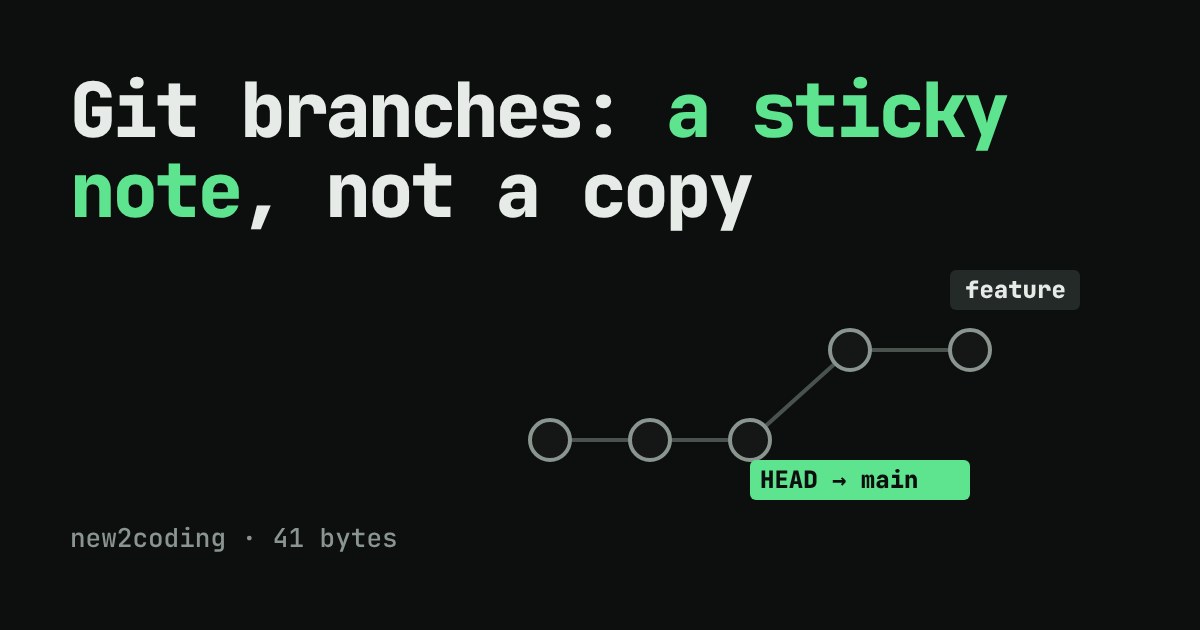
You are working on a project and your teammate says, "make a branch for that." Does Git now copy every file in the project? If the project is huge, will that take minutes? It sounds like it should. It does not. Creating a branch in Git takes a few milliseconds, whatever the size of the project, because a branch is much smaller than people expect.
First, what a commit is
A commit is a saved snapshot of your project, plus a note saying which commit came right before it (its parent). Every commit gets a long name made of letters and digits, such as c6230f5710f0… (40 characters in all). That name is called a hash. People usually show only the first seven characters: c6230f5.
Because each commit points back to its parent, a project's history is a chain: each commit remembers the one before it, all the way back to the first.
A branch is a sticky note
A branch is a name stuck onto one commit, like a sticky note on a page. That is all. Git stores it as a tiny text file holding one hash. You can look at one yourself. In a small test project with two commits on main, we ran this:
$ cat .git/refs/heads/main
c6230f5710f092f608904380349fa330bfae66a6
$ wc -c < .git/refs/heads/main
41
The file is 41 bytes: 40 characters of hash and one newline. (Git can later tidy many of these files into one bigger file, but the idea is the same: a name and a hash.) Making a new branch writes one more 41-byte file. No project files are copied, so the size of your project does not matter.
HEAD: which note you are holding
Git also needs to know which branch you are on right now. It keeps that in a file called HEAD. In our test project:
$ cat .git/HEAD
ref: refs/heads/main
So HEAD usually points to a branch name, and the branch name points to a commit. When you run git commit, Git makes the new commit with the current commit as its parent, then moves the current branch's sticky note forward to the new commit. Other branches do not move.
When you run git switch feature, Git changes HEAD to say ref: refs/heads/feature and updates your files to match that commit. Nothing is deleted from history.
Try it
Below is a tiny project. Make commits, create branches, and switch between them. Watch which labels move and which stay put, and watch the files at the bottom, which are the real contents of the sticky notes.
Two things to notice. First, after git branch, the new label sits on the same commit as the old one, and the counter of copied files stays at zero. Second, after you switch to the new branch and commit, only that branch's label moves forward. The two branches now point to different commits: that is what "diverged" means.
Seeing it in real Git
Here is the same story with the real tool. We made two commits on main, ran git branch feature, switched to it, and made a third commit:
$ git log --oneline --all --graph --decorate
* 0da1f6c (HEAD -> feature) third
* c6230f5 (main) second
* b3e8f2e first
Your hashes will differ, because they depend on the content and the time. main still points at second. feature moved on to third. HEAD -> feature says you are standing on feature. And the two files are still 41 bytes each:
$ wc -c < .git/refs/heads/feature
41
Why this helps you
Knowing that a branch is only a pointer clears up many first-week worries:
Branches are cheap. Make one for every idea, bug fix or experiment. It costs almost nothing, and a throwaway branch can be dropped later.
Deleting a branch deletes a sticky note, not the commits. git branch -d name removes the label. If the work is already reachable from another branch, nothing is lost. (If it is not, Git refuses and warns you, unless you force it.)
Commits go where HEAD is. Before you commit, glance at git status or git branch to check which branch you are on. A commit made on the wrong branch is a commit on the wrong sticky note, which is fixable, but easier to avoid.
The next question is usually "how do two branches come back together?" That is merging, and it is a different story from the one here, but it builds on the same picture: two sticky notes, and a commit that has two parents.