tools/path-why-a-terminal-says-command-not-found-for-a-program-you-installed.md
PATH: why a terminal says command not found for a program you installed
You installed a tool, but the terminal says `command not found`, or it runs an older version. The cause is almost always `PATH`: a short list of folders the shell searches, left to right, stopping at the first match.
Switch folders on and off, reorder them, and run a command to watch the search happen. See why the order decides which version wins, how `which -a` shows every match, and why `./script` skips the list entirely.
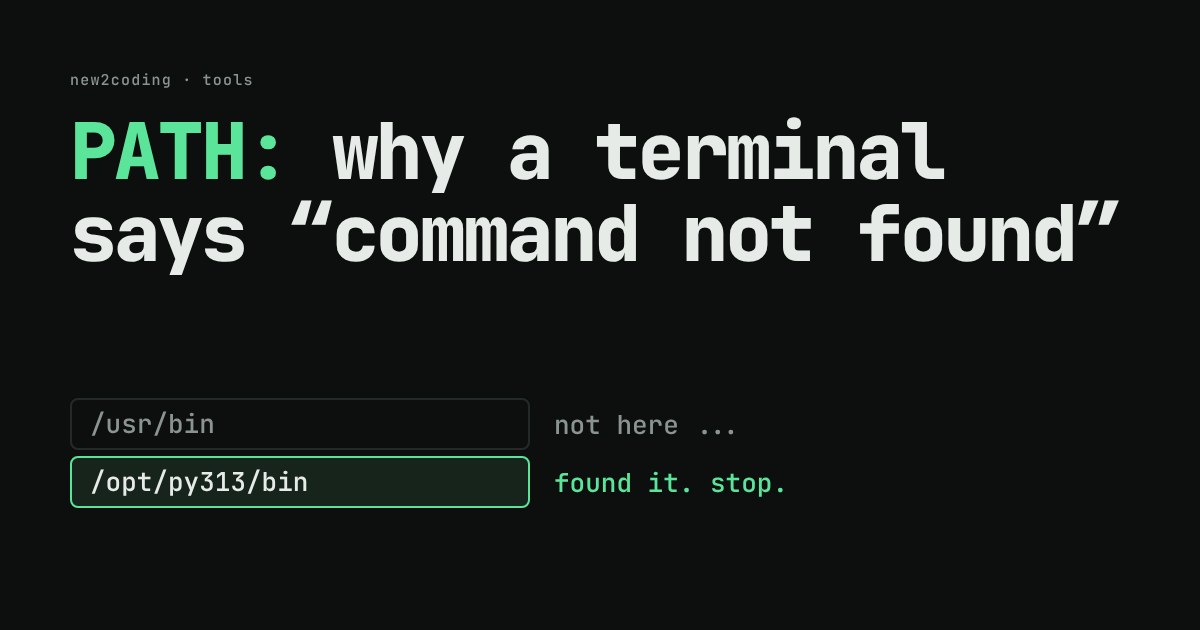
You install a newer version of Python. You open a terminal, type python --version, and it still prints the old one. Or you install a tool and the terminal answers command not found, even though you can see the file on your disk. Nothing is broken. The terminal is following a short list of folders called PATH, and your program is not in the right place on it.
What PATH is
When you type a word such as python in a terminal, that word is the name of a command: a program stored as a file somewhere on your computer. The terminal (the shell, the program that reads what you type) has to find that file. It does not search your whole disk, which would be slow and unpredictable. It looks only in the folders listed in an environment variable called PATH. An environment variable is a named piece of text that the shell hands to every program it starts.
On macOS and Linux, PATH is one line of text with folders separated by colons. On Windows the separator is a semicolon. You can print it:
$ echo $PATH
/tmp/w/a:/tmp/w/b:/usr/bin:/bin
(Yours will show different folders. That output is from a small test setup, with two folders of my own put in front.) The rule has two parts. The shell checks the folders from left to right, and it runs the first match it finds. It stops there. Folders further right are never looked at for that command.
Try it: build a PATH and run a command
Below is a pretend computer with four folders. Two of them hold a program named python, an old one and a new one. Switch folders on or off, move them up and down, then run a command and watch the search.
Things to try. Run python with the default settings: you get 3.9, found in /usr/bin. Switch on /opt/py313/bin: nothing changes, because /usr/bin still comes first. Move the new folder above it and run again: now you get 3.13. Then run backup: it fails until you switch on ~/scripts. Last, type ./backup and see why a path with a slash behaves differently.
Why "command not found" happens
If no folder on the list holds a file with that name, the shell gives up. In bash the message looks like this, and the program's exit code is 127, which is the shell's way of saying "I could not find it":
$ greet
bash: line 1: greet: command not found
exit=127
The file may exist. It just lives in a folder that is not on PATH. Two fixes work: put the file in a folder that is on PATH, or add its folder to PATH.
Adding a folder, and why order matters
To add a folder for the current terminal session, put it at the front or the back of the existing value:
export PATH="$HOME/scripts:$PATH"   # front: checked first
export PATH="$PATH:$HOME/scripts"   # back: checked last
Here $PATH means "the current value", so you are building a new line out of the old one. The front is where you want a newer tool to win over an older one with the same name. The back is the safer place for something you only want when nothing else matches. To make it stick for every new terminal, the same line goes into your shell's startup file (for example ~/.zshrc or ~/.bashrc), but that file differs by shell and system, so check which one yours reads.
I tested the front version with two folders that each contain a program called greet. With folder a first, the command printed hello from a. With folder b first, the same command printed hello from b. Same name, same two folders, different winner. Only the order changed.
Seeing every match
When the wrong version runs, ask the shell for every match, not just the winner. which -a lists them in the order they are searched:
$ which -a greet
/tmp/w/a/greet
/tmp/w/b/greet
The first line is the one that runs. If the line you wanted is second, the folder order is your problem.
Python can do the same lookup, which is handy for seeing the rule in code. shutil.which takes a name and a PATH string:
import shutil
print(shutil.which('greet', path='/tmp/w/a:/tmp/w/b'))
print(shutil.which('greet', path='/usr/bin:/bin'))
Running it prints:
/tmp/w/a/greet
None
The first call finds the file in folder a and stops. The second finds nothing and returns None, which is the same situation as "command not found".
The slash exception
If what you type contains a slash, the shell does not use PATH at all. It treats the text as the location of the file. ./greet means "the file called greet in the folder I am in right now", and it ran fine in my test even with a PATH that had no greet in it. That is why ./script.sh works from the folder where the script lives, while plain script.sh says command not found.
What to do with this
Next time a command is missing or the wrong version runs, work through three questions. What does echo $PATH show? What does which -a name list? Is the folder holding the file on the list, and is it before the older copy? A shell may also remember where it found a command earlier in the same session, so after you change something and it still behaves oddly, opening a fresh terminal rules that out. Most "it's installed but it won't run" problems turn out to be a folder missing from one short line of text.