tools/git-staging-area-why-saving-your-work-takes-git-add-and-git-commit.md
Git staging area: why saving your work takes git add and git commit
Why does saving your work in Git take two commands, `git add` and `git commit`? Because a change travels through three places: your working folder, a waiting room called the staging area, and the saved history.
Play with a small model of all three, stage one file while leaving another behind, and learn to read the two-letter codes in `git status -s` (including the confusing `MM`).
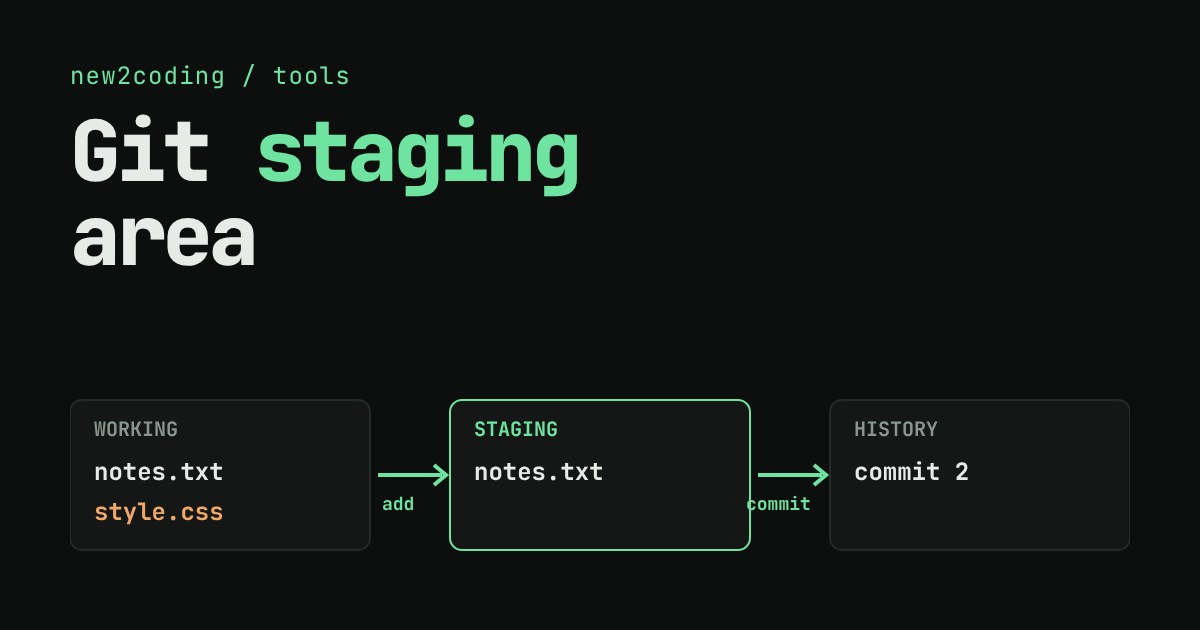
You change two files. You want to save the change to one of them as its own snapshot, and leave the other for later. In Git, the tool most programmers use to track versions of their code, you do this with two commands instead of one: git add and then git commit. Why two? Because there is a middle place between your folder and your saved history, called the staging area.
Three places, not two
Git keeps your work in three places, and a change moves through them in order.
The working folder is the normal folder on your computer. When you edit a file in your editor, you are changing it here. Git notices, but it saves nothing yet.
The staging area (also called the index) is a waiting room. It holds the exact changes you have chosen for your next snapshot. git add copies a file's current contents into it.
The repository (or history) is the list of saved snapshots, called commits. git commit takes whatever is in the staging area and saves it as a new commit. Files you did not stage are not part of it.
Try it
This is a tiny model of those three places with two files. Edit a file, stage it, and commit. Watch which file ends up in the commit, and read the git status -s output underneath, which is the real two-letter format Git prints.
What it looks like in a real terminal
Here is the same idea on a real repository (Git 2.43). Both files were edited, then only notes.txt was staged and committed:
$ git status -s
 M notes.txt
 M style.css

$ git add notes.txt
$ git status -s
M  notes.txt
 M style.css

$ git commit -m "Update notes"
$ git status -s
 M style.css
The two letters are two columns. The left one compares the staging area to the last commit. The right one compares your working folder to the staging area. So M notes.txt means "staged and ready", M style.css means "edited but not staged", and after the commit only style.css is still waiting.
Staging takes a copy of the moment you ran add
This catches many beginners. git add stages the file as it is right now. If you edit the file again afterwards, the new edit is not staged. Git shows this with MM:
$ echo "hello again" > notes.txt
$ git add notes.txt
$ echo "more" >> notes.txt
$ git status -s
MM notes.txt
Both columns say M because the staged version and the working version are different. A commit now would save "hello again" without the extra "more" line. In the model above, try it: edit, add, edit again, and look at the status before you commit.
Why bother with a waiting room?
It lets you shape your history instead of dumping everything into it. Suppose you fixed a bug and, in the same afternoon, started an unfinished feature. You can stage only the bug fix and commit it with the message "Fix login bug". The unfinished work stays in your folder, uncommitted. Later, a reader of the history sees small commits that each do one thing, which is much easier to understand, review and undo than one giant "stuff" commit.
Handy commands for the waiting room
| Command | What it does |
|---|---|
git status | Shows what is staged, what is edited but not staged, and what is new. |
git add file | Stages the file's current contents. |
git restore --staged file | Takes the file back out of the staging area. Your edits stay in the working folder. |
git diff | Shows changes that are not staged yet. |
git diff --staged | Shows what the next commit will contain. |
Running git restore --staged notes.txt on the MM example above brought the status back to M notes.txt: nothing staged, both edits still safe in the file. And git diff --staged before you commit is a good habit: it shows exactly what you are about to save.
So what, for your own code?
Before each commit, run git status and look at the left column. Whatever has a letter there is what you are about to save. If a file you did not mean to include is staged, take it out with git restore --staged. You may also see people use git commit -a, which stages changes to files Git already tracks and commits in one step. It is a shortcut, and it skips the careful choosing that the staging area exists for, so it is best saved for moments when you really do want everything.