tools/gitignore-how-git-decides-which-files-to-skip-and-the-one-rule-that-su.md
Gitignore: how Git decides which files to skip, and the one rule that surprises everyone
Why does a file show up in git status when you wanted it hidden, and why does a file you ignored sometimes stay tracked anyway?
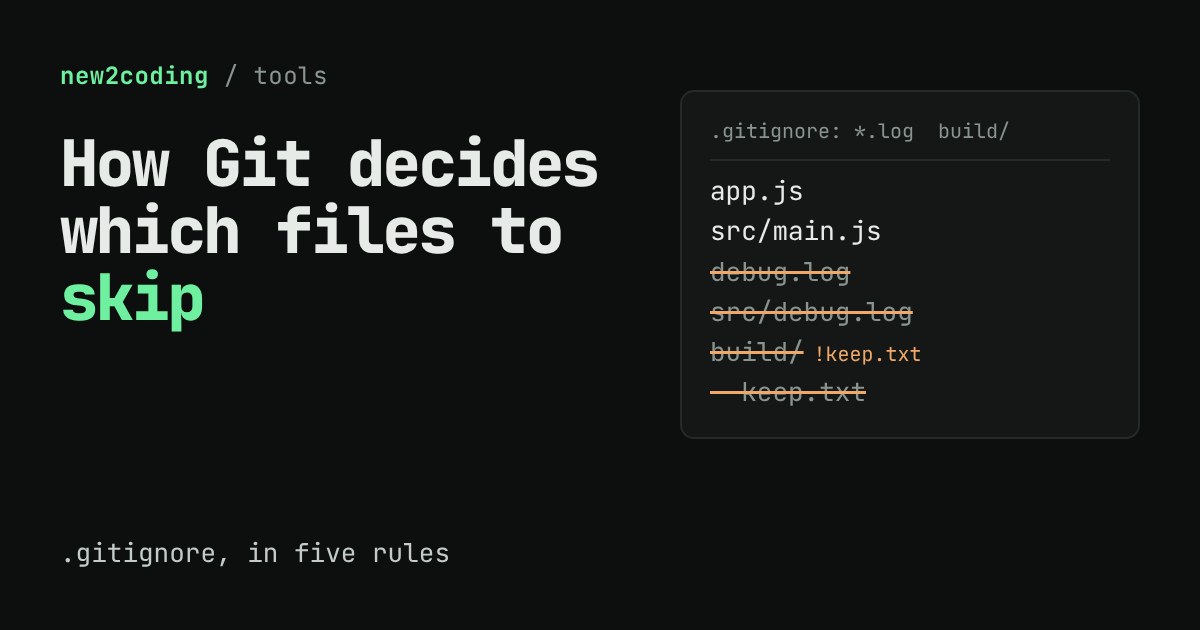
Five short rules decide it: names with no slash match at any depth, a slash pins a pattern to a folder, a trailing slash means folders only, `!` re-includes a file, and nothing inside an ignored folder can be rescued. Edit a live .gitignore, watch a file tree react, and learn the one command that tells you which line is responsible.
You create a file called .env full of passwords, you run git status, and there it is, waiting to be committed. Or the opposite: you add a line to .gitignore, and a file you wanted vanishes from the list. Both surprises come from the same small rule book, and it is short enough to learn in ten minutes.
What a .gitignore actually is
Git is a tool that records the history of a project's files. A file named .gitignore (the leading dot is just part of the name) is a plain text list of patterns: short descriptions of file names. Each time Git lists files, it checks every path against your patterns, and any path that matches is left out of git status and out of git add .. That is all it does. It does not delete anything and it does not hide the file from you; your editor still sees it.
Here is a real run. The folder has app.js, .env, debug.log, src/main.js, src/debug.log and build/app.min.js. The .gitignore says:
.env
*.log
build/
Before and after creating it (-uall just asks Git to list every file instead of folding folders into one line):
$ git status --short -uall          # before
?? .env
?? app.js
?? build/app.min.js
?? debug.log
?? src/debug.log
?? src/main.js

$ git status --short -uall          # after
?? .gitignore
?? app.js
?? src/main.js
Notice that src/debug.log disappeared too, even though the pattern says *.log and not src/*.log. That is the first rule.
The five rules
1. A pattern with no slash matches a name at any depth. *.log catches debug.log in the top folder and src/debug.log two levels down. The official documentation says that a pattern with a separator at the beginning or middle is tied to the folder holding the .gitignore, and "otherwise the pattern may also match at any level below".
2. A slash at the start or in the middle pins the pattern to that folder. /*.log only matches log files in the top folder. docs/*.md matches docs/guide.md but not docs/build/notes.md, because * matches "anything except a slash" and ? matches any one character except a slash. To cross folders, write docs/**/*.md; a ** between slashes matches zero or more folders.
3. A slash at the end means folders only. build/ matches a folder named build, and therefore everything inside it. build without the slash would also match a file with that name.
4. A ! at the start un-ignores. *.log followed by !important.log ignores every log except that one. The last line that matches a path wins, so order matters.
5. You cannot rescue a file from an ignored folder. The documentation is blunt: "It is not possible to re-include a file if a parent directory of that file is excluded." Git never looks inside an ignored folder, so a ! line about something inside it is never consulted. This is the rule that bites people most often, and the playground below lets you see it happen.
Blank lines are skipped, and a line starting with # is a comment. Trailing spaces are ignored unless you put a backslash in front of them.
Try it: edit the rules, watch the files
Pick the parent trap: build/ ignores the whole folder, so !build/keep.txt never gets a chance to run, and build/keep.txt stays struck through. Now pick the fix. build/* ignores each thing inside build but not the folder itself, so Git still looks in, and the ! line can rescue one file. I checked that pair against real Git, and it behaves exactly like this.
Why a file is still tracked after you ignore it
Patterns only apply to files Git is not already tracking. If you committed debug.log last week and add *.log today, Git keeps tracking it:
$ git status --short            # debug.log was committed before it was ignored
 M debug.log

$ git rm --cached debug.log     # stop tracking, but keep the file on disk
$ git status --short
D  debug.log
$ ls debug.log
debug.log
git rm --cached removes the file from Git's list for the next commit while leaving it in your folder. The D in the first column means "deleted from the next commit". After you commit, the ignore rule takes over. One honest warning: the file is still in your history. If it held a password, ignoring it now does not undo the leak; change the password.
Asking Git which line is responsible
When a rule does not do what you expect, ask Git directly. git check-ignore -v prints the file, line number and pattern behind each decision:
$ git check-ignore -v src/debug.log build/app.min.js app.js
.gitignore:2:*.log	src/debug.log
.gitignore:3:build/	build/app.min.js
app.js has no line because nothing ignores it. Every path that matches gets one line in the form file:line:pattern, then the path.
Where else ignore rules can live
A .gitignore is committed along with your project, so everybody who clones it gets the same rules. Two other places exist for rules that are not meant for everyone. .git/info/exclude works like a private .gitignore for one copy of the repository. A global file, set with the core.excludesFile setting (by default ~/.config/git/ignore), suits things like editor backup files that you never want in any project. A good habit: put project junk (node_modules/, build/, .env) in .gitignore, and your own tool's leftovers in the global file.
What to take away
Names with no slash match at any depth; a slash at the start or middle pins them; a slash at the end means folders only; ! re-includes, last match wins, and nothing inside an ignored folder can be rescued. Add the file to .gitignore before the first commit and you will rarely need the clean-up commands at all.