tools/git-merge-vs-rebase-same-code-two-different-histories.md
Git merge vs rebase: same code, two different histories
Git can combine two lines of work in two ways. Merge ties them together with a new commit and leaves every old commit alone. Rebase replays your commits on top of the other branch, which gives a straight history but creates copies with new hashes.
Tap through a real example, see exactly which commits change, and learn the one rule that keeps rebase safe: only rebase work nobody else has yet.
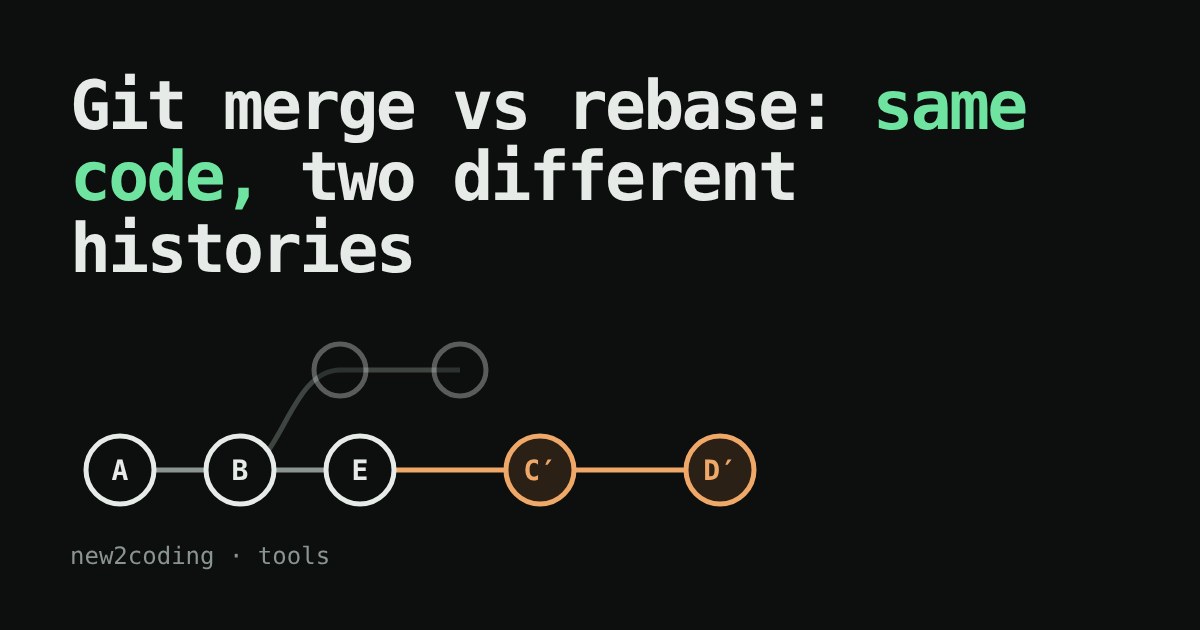
You and a teammate both started from the same commit. She finished her work on main. You finished yours on a branch called feature. Now the two lines of work have to meet. Git gives you two main ways to do that, merge and rebase, and beginners are often told "never rebase" or "always rebase" without a reason. This article shows what each one really does to your history, so you can decide for yourself.
First, what a commit is
A commit is a saved snapshot of your project plus a note. Each commit also remembers its parent, the commit that came right before it. Following parents backwards gives you the history. A branch is just a movable name that points at one commit (the Git basics article covers this).
Every commit has an ID, a hash, such as 1f885b5. Git computes it from the commit's contents including its parent's hash. Change the parent and you get a different hash. Keep that in mind; it explains everything below.
The situation
Here is the real starting point. Commits A and B are shared. After that, main has one new commit, E, and feature has two, C and D. The history has forked.
Merge: tie the two lines together
git switch main
git merge feature
Git makes one new commit with two parents, the tip of main and the tip of feature. Nothing that already existed changes. C and D keep their hashes. The history is honest: it shows that the work happened in parallel and was joined later. The cost is a graph that gets busy when many branches do this.
Rebase: replay your work on top
git switch feature
git rebase main
Git sets C and D aside, moves your branch to the tip of main, then re-applies each change, one at a time. The result looks like a straight line, as if you had started your work after E.
But look at the hashes in the demo. The replayed commits are copies. C became 9a54e7b and D became 0ab36cc. They hold the same changes, but their parent is different, so Git gives them new IDs. The old C and D are no longer on any branch, so they look gone (Git keeps them for a while, and git reflog can find them).
Real output
This is the output of git log --oneline --graph --all on the same example, run with Git 2.43.0, after the merge and after the rebase (each in its own copy of the repository):
# after merge
*   69502b6 Merge branch 'feature'
|\
| * 1f885b5 D
| * ff579e2 C
* | 7f2cf9f E
|/
* f406b18 B
* a1b951a A

# after rebase
* 0ab36cc D
* 9a54e7b C
* 7f2cf9f E
* f406b18 B
* a1b951a A
So which one?
| Merge | Rebase | |
|---|---|---|
| Existing commits | Untouched | Copied, with new hashes |
| Shape of history | Shows the fork and the join | One straight line |
| Safe on shared branches | Yes | Not after others have your commits |
The last row is the one that matters. If a teammate already downloaded C and D, and you replace them with copies, your histories no longer match and Git will show confusing duplicates. The common rule is: rebase your own work that nobody else has yet; merge once it is shared. If you do rebase a branch you already pushed, Git will refuse a normal push. The safer option is git push --force-with-lease, which only overwrites the remote if it is still what you last saw.
Teams also differ. Some require a linear history and use rebase everywhere; others like merge commits. Follow what your team does. If a rebase stops with a conflict, Git pauses, tells you which files clash, and waits for you to fix them and run git rebase --continue (or git rebase --abort to go back to where you started).
A shortcut you will meet: pull --rebase
When you run git pull, Git downloads new commits and then combines them with yours, by default with a merge. git pull --rebase downloads, then replays your unpushed local commits on top instead. That avoids small "Merge branch main" commits that only say "I updated". It is the same rebase as above, applied to commits only you have.