web/viewport-and-media-queries-why-a-page-looks-tiny-on-a-phone-and-how-it.md
Viewport and media queries: why a page looks tiny on a phone, and how it rearranges itself
Why does a page look like a tiny copy of the desktop version on a phone, and how does the same page rearrange itself for a small screen?
Learn what the viewport is, why phones pretend to be wider than they are, and how a one-line meta tag fixes it. Then see how a media query turns three columns into one, and squeeze a pretend screen yourself to watch both ideas work together.
You build a page on your laptop and it looks great. Then you open it on your phone and it is a tiny, squinting copy of the desktop version. Why does the phone not just show your page at a readable size? And once it does, how can the same page rearrange itself for a small screen? Two small ideas answer both: the viewport and the media query.
First, a pixel is not a pixel
A CSS pixel is the unit your stylesheet uses, as in width: 300px. It is not the same as a physical dot on the screen. Modern phones pack several physical dots into each CSS pixel so text stays sharp. That is why a phone with a screen thousands of dots wide can still report a width of only a few hundred CSS pixels. When this article says "390px wide", it means 390 CSS pixels, which is a common phone width.
The viewport: the window your page is laid out in
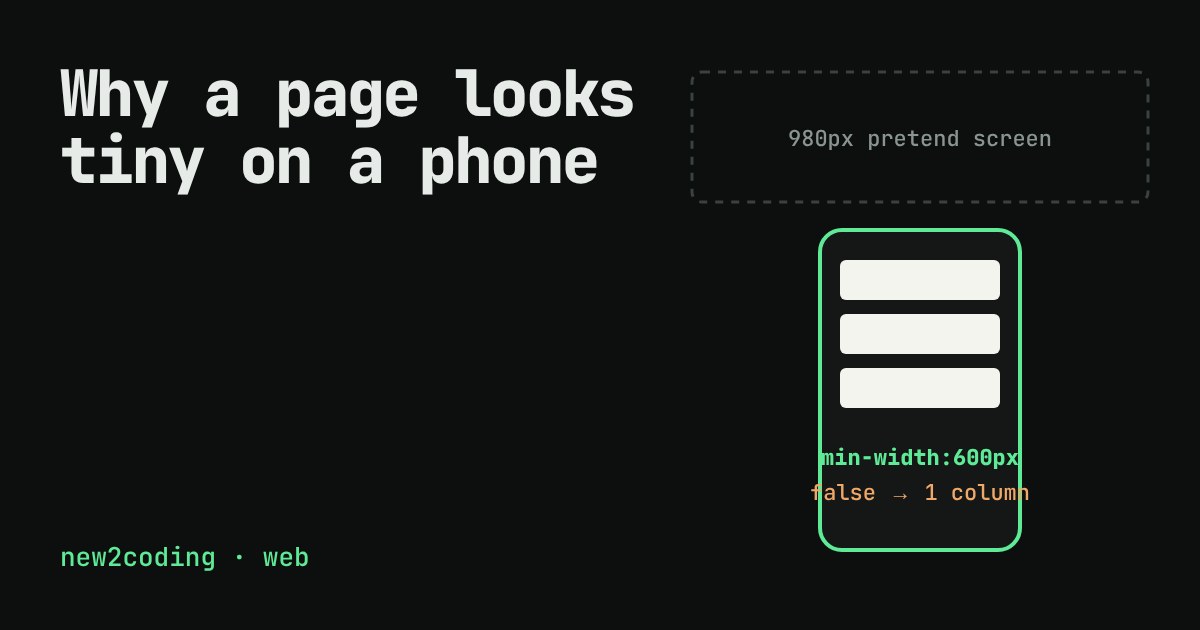
The viewport is the rectangle the browser lays your page out in. On a desktop it is simply the browser window. Phones add a twist. Back when most websites were built only for desktops, phone browsers pretended the screen was wider than it is. They laid the page out in a wide "virtual" viewport (MDN gives 980px as an example), then shrank the whole picture down to fit the real screen. That is the tiny copy you saw.
Your page can opt out with one line in the <head>:
<meta name="viewport" content="width=device-width">It tells the browser: lay the page out as wide as the device really is. Many people write width=device-width, initial-scale=1. MDN says the initial-scale=1 part is usually unnecessary when you use width=device-width, but it is harmless and very common.
The media query: CSS that asks a question
A media query is a condition wrapped around some CSS. The rules inside apply only while the condition is true:
.cards { display: grid; grid-template-columns: 1fr; }   /* narrow: one column */

@media (min-width: 600px) {
  .cards { grid-template-columns: repeat(3, 1fr); }      /* 600px or wider: three */
}
min-width: 600px reads as "when the viewport is at least 600 CSS pixels wide". The base rules come first and describe the smallest screen; each query adds changes as there is more room. Writing it this way is often called mobile-first.
Notice how the two ideas connect. The query measures the layout viewport. If the phone pretends to be 980px wide, min-width: 600px is true even on a small phone, and your phone layout never shows up. MDN states this directly: with a 980px virtual viewport, queries aimed at 640px or less will never be used. Without the viewport tag, media queries do not do what you meant.
Try it: squeeze the screen
With the tag on, shrink the screen below 600 and the cards stack into one column at full size. With it off, anything narrower than 980 gets laid out as 980 wide and then shrunk, so the text becomes tiny and the three columns stay put. The query was fine; the browser was answering a different question.
Asking the same question from JavaScript
CSS is not the only place to ask. window.matchMedia takes the same query text and tells you whether it is true right now. I ran this in a browser window set to 500px wide, then again at 700px:
console.log(window.matchMedia("(min-width: 600px)").matches);
// 500px wide window -> false
// 700px wide window -> true
What to do in your own pages
Put the viewport line in the <head> of every page you build. Write your base CSS for a narrow screen, then add min-width queries when the layout starts to look stretched. Pick breakpoints by looking at where your own content breaks, not by memorising device sizes; devices change every year. And test by dragging your desktop browser window narrow, which is exactly what the demo above does.
Next time a page looks tiny on a phone, check for the viewport tag first. It is the most common cause.