web/flexbox-how-a-row-of-boxes-decides-who-gets-the-leftover-space.md
Flexbox: how a row of boxes decides who gets the leftover space
Put three boxes in a row and the browser decides, by a short fixed recipe, who gets the extra room and who gives some up. Learn the three numbers behind it: each item's basis, the container's free space, and the grow and shrink weights.
Drag the sliders on real flex items, compare the browser's widths with the formula, see why `flex: 1` makes equal columns, and run the recipe as a few lines of JavaScript.
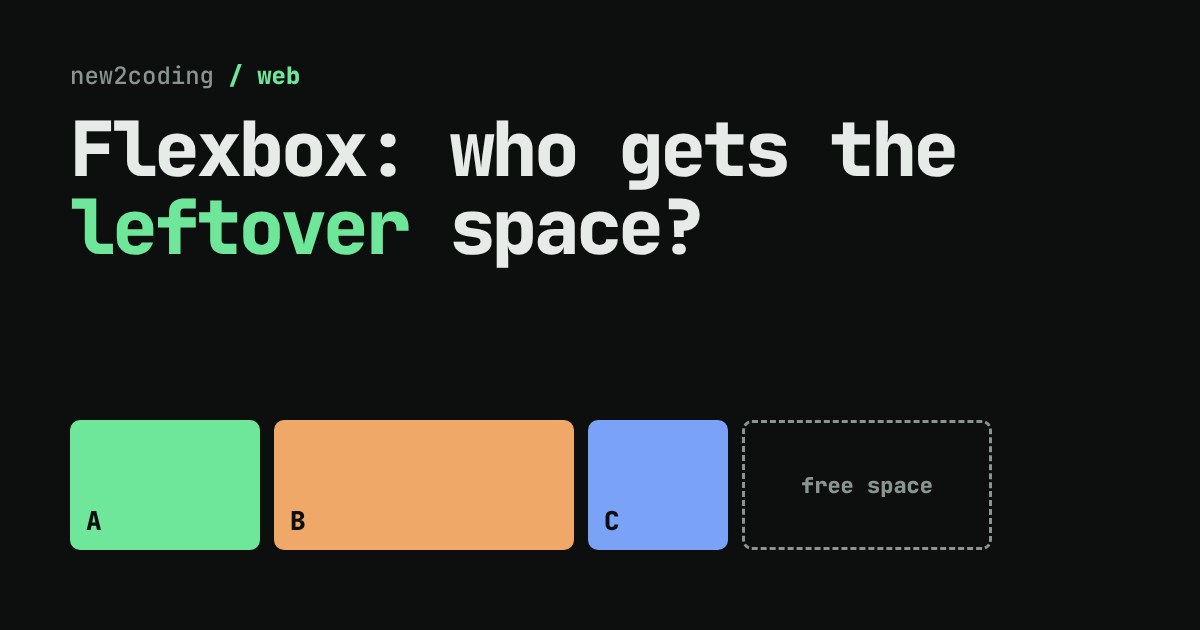
You put three boxes in a row, and they line up neatly. Then you widen the page and some boxes grow while others stay put. Narrow it and they squash, but not by equal amounts. Nothing in your code says who gets the extra room, so how does the browser decide?
It follows one short, fixed recipe. Once you can see the recipe, flexible layouts stop feeling like guesswork.
Step 1: switch on flexbox
Flexbox is a way of laying out children inside a parent. You turn it on by giving the parent a display value:
.row { display: flex; }The parent is now a flex container and its children are flex items. By default the items sit side by side in a row, and each one is as wide as the thing inside it needs. The leftover room in the container is simply empty.
Step 2: find the free space
Every item starts from a basis: the width it would like to have before any sharing happens. You set it with flex-basis (or just width). Add up all the bases and the gaps between items, subtract that from the container's width, and you get the free space:
free space = container width - gaps - (basis A + basis B + basis C)Free space can be positive (room to spare) or negative (the items don't fit). Two properties decide what happens to it. flex-grow says how much of a positive amount an item takes. flex-shrink says how much of a negative amount an item gives up. The defaults are flex-grow: 0 (never take extra) and flex-shrink: 1 (give up some if needed).
Try it: drag the numbers
Start with Defaults. Every item has grow 0, so the free space just sits at the right. Now press All grow 1: the free space is cut into three equal slices, and each item gets one slice on top of its basis. The boxes are still different widths, because they started from different bases. Only flex: 1 each makes them equal, and the reason is in the next section.
The recipe, as code
Here is the whole idea as a few lines of JavaScript. It is not how a browser is written inside, but it gives the same answers for these simple cases:
function layout(width, gap, items) {
  const free = width - gap * (items.length - 1)
             - items.reduce((s, i) => s + i.basis, 0);
  if (free >= 0) {
    const grow = items.reduce((s, i) => s + i.grow, 0);
    return items.map(i => i.basis + (grow ? free * i.grow / grow : 0));
  }
  const weight = items.reduce((s, i) => s + i.shrink * i.basis, 0);
  return items.map(i => i.basis + (weight ? free * i.shrink * i.basis / weight : 0));
}

const items = [
  { basis: 100, grow: 1, shrink: 1 },
  { basis: 100, grow: 2, shrink: 1 },
  { basis: 60,  grow: 1, shrink: 1 },
];
console.log(layout(500, 8, items));  // room to spare
console.log(layout(200, 8, items));  // not enough room
Running it prints this:
[ 156, 212, 116 ]
[ 70.76923076923077, 70.76923076923077, 42.46153846153846 ]
In the first line the free space is 500 - 16 - 260 = 224. It is split 1 : 2 : 1, so the slices are 56, 112 and 56, and adding each to its basis gives 156, 212 and 116. In the second line the free space is 200 - 16 - 260 = -76, so width is taken away instead, in proportion to shrink times basis (100, 100 and 60). Check the first line yourself with the sliders (on a phone the container slider stops at a smaller width, so try it on a wider screen): set the container to 500, the bases to 100, 100 and 60, and the grows to 1, 2 and 1.
Why "flex: 1" gives equal columns
The shorthand flex: 1 means flex: 1 1 0: grow 1, shrink 1, and a basis of zero. With every basis at zero, the entire container is free space, and equal grow values slice it into equal parts. Compare that with writing only flex-grow: 1, which leaves each basis at its content size, so the boxes keep their different starting widths and only the leftover is shared.
Two other shorthands are worth knowing: flex: auto is 1 1 auto (start from content size, share the rest), and flex: none is 0 0 auto (a rigid item that neither grows nor shrinks).
When there isn't enough room
Press Too narrow. The bases add up to more than the container, so the free space is negative and the browser takes width away. It does not take the same amount from everyone: each item's share is weighted by flex-shrink multiplied by its basis. A big item has more to give up, so it gives up more. Set a box's shrink to 0 and watch it refuse to budge while the others pay for it.
One real-world catch: by default a flex item will not shrink below the width of its own content (its min-width is auto). A long word or a wide image can therefore stop an item shrinking and push the row past the edge of the page. The demo above sets min-width: 0 on its boxes so you can see the pure recipe. In your own layouts, adding min-width: 0 to an item is the usual fix when text overflows.
What this means for your own code
Next time a row of boxes behaves oddly, ask three questions in order. What is each item's basis? Is the free space positive or negative? Which of flex-grow or flex-shrink applies, and what are the weights? Most flexbox surprises are one of those three answers you didn't know yet. As of 2026 this behaviour is the same in all major browsers, and it is defined in the CSS Flexible Box Layout specification.