tools/file-permissions-what-rwxr-xr-x-means-and-why-a-script-says-permission.md
File permissions: what rwxr-xr-x means, and why a script says Permission denied
You run your first script and the terminal says Permission denied. Nothing is wrong with your code: every file and folder carries read, write and execute permissions for its owner, its group and everyone else.
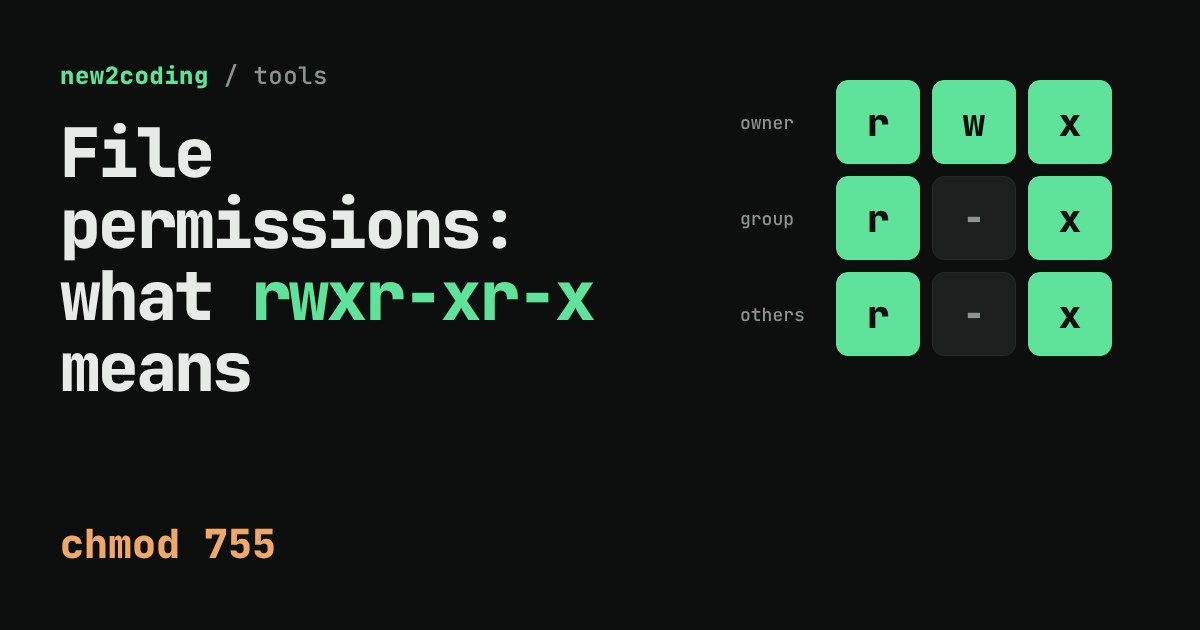
Tap the squares to build a permission yourself and watch the ten-character string from `ls -l`, the three-digit number and the `chmod` command change together. You will see why 755 means rwxr-xr-x, why a folder's execute bit works differently, and how to fix the error by adding only the one bit that is missing.
The error that stops your first script
You write a small script, save it as hello.sh, type ./hello.sh to run it, and the terminal answers:
$ ./hello.sh
bash: ./hello.sh: Permission denied
Nothing is wrong with your code. The computer is following a rule you haven't met yet: every file and folder on Linux and macOS carries a small set of permissions that say who may read it, change it, or run it. This article shows how to read those permissions, and how the mysterious numbers in chmod 755 are just a way of writing them down.
Reading the ten characters
The command ls -l lists files in long form, one per line. Here is the line for our script:
$ ls -l hello.sh
-rw-r--r-- 1 root root 41 Nov  2 00:14 hello.sh
The first ten characters are the interesting part. The first one tells you the kind of thing: - means an ordinary file and d means a directory (a folder). The other nine are three groups of three:
| characters | who they are for |
|---|---|
rw- | owner (the user who owns the file) |
r-- | group (other users in the file's group) |
r-- | others (everyone else on the machine) |
Inside each group, the three slots always come in the same order: r for read, w for write, x for execute. A letter means the permission is on. A dash means it is off. So rw-r--r-- says: the owner can read and write, the group can only read, everyone else can only read. Nobody can execute the file, which is exactly why ./hello.sh was refused.
Try it: build a permission yourself
Tap the squares to switch permissions on and off. Watch the ten-character string, the three-digit number and the chmod command change together.
Switch to A directory and the same nine squares mean something slightly different. We will come back to that.
Where the numbers come from
Typing chmod u+x hello.sh or chmod 755 hello.sh both change permissions. The number form looks like magic until you see the trick: each permission has a value. Read is 4, write is 2, execute is 1. Add up the ones that are on, and each group becomes a single digit from 0 to 7.
Take rwxr-xr-x. The owner has all three: 4 + 2 + 1 = 7. The group has read and execute: 4 + 1 = 5. Others also have 5. Put the three digits side by side and you get 755. Going the other way, 644 is 6 (4 + 2, so rw-), then 4 (r--), then 4 (r--). Because the values are 4, 2 and 1, every digit from 0 to 7 corresponds to exactly one combination, so nothing is ambiguous.
Here is that script going through several modes on a real Linux machine:
$ chmod 755 hello.sh && ls -l hello.sh
-rwxr-xr-x 1 root root 41 Nov  2 00:14 hello.sh
$ chmod 644 hello.sh && ls -l hello.sh
-rw-r--r-- 1 root root 41 Nov  2 00:14 hello.sh
$ chmod 600 hello.sh && ls -l hello.sh
-rw------- 1 root root 41 Nov  2 00:14 hello.sh
$ chmod 750 hello.sh && ls -l hello.sh
-rwxr-x--- 1 root root 41 Nov  2 00:14 hello.sh
The fix for "Permission denied"
Back to the opening error. The script had rw-r--r--: nobody was allowed to execute it. The letter form of chmod lets you change one thing without retyping everything. u means the owner, g the group, o others, and +x adds execute:
$ chmod u+x hello.sh
$ ls -l hello.sh
-rwxr--r-- 1 root root 41 Nov  2 00:14 hello.sh
$ ./hello.sh
hello from the script
Now the owner's slot reads rwx and the script runs. Use chmod +x hello.sh without a letter and it adds execute for everyone (your system's umask, a default mask, can hold some back, so check with ls -l).
Why a directory is different
For a folder, the three letters mean something else, and the surprise is the x. Read lets you list the names inside. Write lets you add, rename or delete items. Execute lets you step into the folder and reach what is inside it, which is why you will often see it called "search" permission. Without it, you can know a name but not open it. Here is what happened when another user tried a folder with two different modes:
# drw-r--r--  (read, but no execute)
$ ls dd
a
$ cat dd/a
cat: dd/a: Permission denied

# drwx--x--x  (execute, but no read for others)
$ ls dd
ls: cannot open directory 'dd': Permission denied
$ cat dd/a
(no error: it opened the file, which is empty here)
In the first case the names are visible but the door is locked. In the second the listing is hidden, but anyone who already knows the exact name can walk in. Most folders you meet use 755 (everyone can look and enter, only the owner can change things) for exactly this reason.
Numbers worth recognising
| mode | letters | typical use |
|---|---|---|
644 | rw-r--r-- | ordinary files: you edit, others read |
755 | rwxr-xr-x | programs, scripts and folders |
600 | rw------- | private files only you may touch |
700 | rwx------ | private folders or scripts |
The 600 row matters more than it looks. Programs that handle secrets, such as the SSH tool with a private key, may refuse to use a key file that other users can read. If you ever see a warning that a file's permissions are "too open", tighten it with chmod 600 on the file.
What to take away
When you see Permission denied, run ls -l on the file and read the ten characters: kind, then owner, group, others, each with read, write and execute. A missing x on a script is the most common cause for beginners. Remember 4, 2 and 1, and chmod 755 stops being a spell and becomes arithmetic you can do in your head. Avoid reaching for chmod 777 (everything on for everyone) to make an error go away: it fixes the message by letting every user on the machine change the file, so work out which single bit was missing and add only that.