tools/git-stash-how-to-set-half-done-work-aside-without-committing-it.md
Git stash: how to set half-done work aside without committing it
You are halfway through a change when you need to switch branches, but the work isn't ready to commit. Git stash puts your unfinished edits on a shelf and gives you a clean folder back.
Try a small simulator that shows what stash saves, why a brand new file gets left behind, how pop, apply and drop differ, and what happens when restoring a stash collides with newer changes. Real command output included.
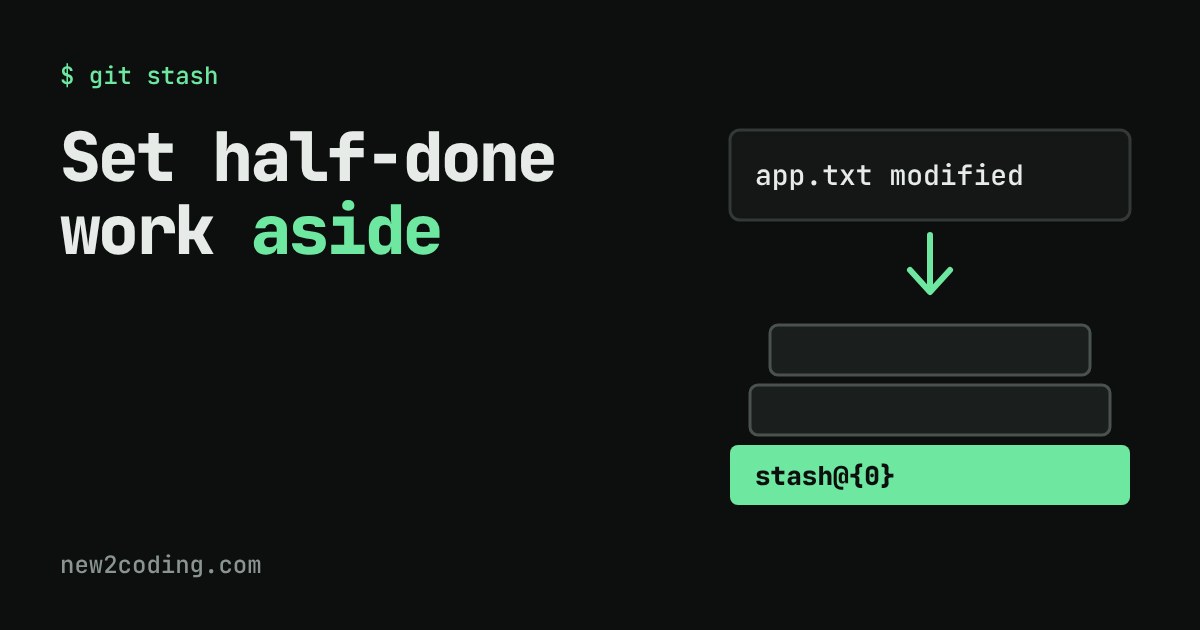
You are halfway through changing a file when a teammate says, "Can you fix a typo on the main branch, right now?" Your change isn't ready to save as a commit, but you don't want to lose it either. Git stash is the tool for this moment: it puts your unfinished work on a shelf and gives you back a clean folder.
Where your work lives (a quick recap)
Git tracks three places. The commits are saved history. The working folder is the real files you edit. Between them sits the staging area, where you collect what goes into the next commit. Files Git has never been told about are called untracked. Switching branches wants a tidy working folder, and uncommitted edits can get in the way. That is the problem stash solves.
What git stash does
Running git stash takes your uncommitted changes to files Git already tracks, saves them, and resets those files to match the last commit. Your folder looks clean again. The saved changes go onto the stash, which is a pile: the newest item sits on top, like plates in a stack.
$ git status -s
 M app.txt
$ git stash
Saved working directory and index state WIP on main: 86d0ca1 first
$ git status -s
$ git stash list
stash@{0}: WIP on main: 86d0ca1 first
The output above was copied from a real run (the commit id will differ on your machine). WIP means "work in progress", and stash@{0} is the name of the top item. Older ones are stash@{1}, stash@{2} and so on.
Try it yourself
This is a tiny pretend repository. Make some changes, then use the stash commands and watch the three boxes.
Getting your work back: pop, apply, drop
git stash pop puts the top item back in your folder and removes it from the pile. git stash apply puts it back but keeps a copy on the pile, which is handy if you want the same changes on two branches. git stash drop throws the top item away. Be careful with that last one: dropped work is difficult to recover.
The pile really is a stack. I stashed two changes in a row and the listing came out like this:
$ git stash list
stash@{0}: On main: second idea
stash@{1}: On main: first idea
$ git stash pop      # brings back "second idea" first
The surprise: new files are left behind
Plain git stash only saves changes to files Git already tracks. A brand new file stays in your folder. If that is not what you want, use git stash -u (short for --include-untracked), which takes those files too. Try both in the simulator above.
Name your stashes
After a few days, a pile of entries called WIP on main is hard to tell apart. Add a message:
$ git stash -u -m "wip: greeting"
$ git stash list
stash@{0}: On main: wip: greeting
To see what an entry holds before restoring it, run git stash show -p. It prints the changes as a diff.
When pop goes wrong
If you committed something else to the same lines in the meantime, restoring the stash can collide with it. Git then reports CONFLICT, marks the file for you to fix, and keeps the stash entry instead of deleting it. That is a safety net: nothing is lost until you drop it yourself. Fix the file, then drop the entry once you are happy.
So what for your own code?
Use stash for short breaks: a quick fix on another branch, pulling someone's changes, or testing whether a bug exists without your edits. If the work will sit for days, a commit on a branch is safer and easier to find. And when a stash holds something precious, check git stash list before you clean up.